
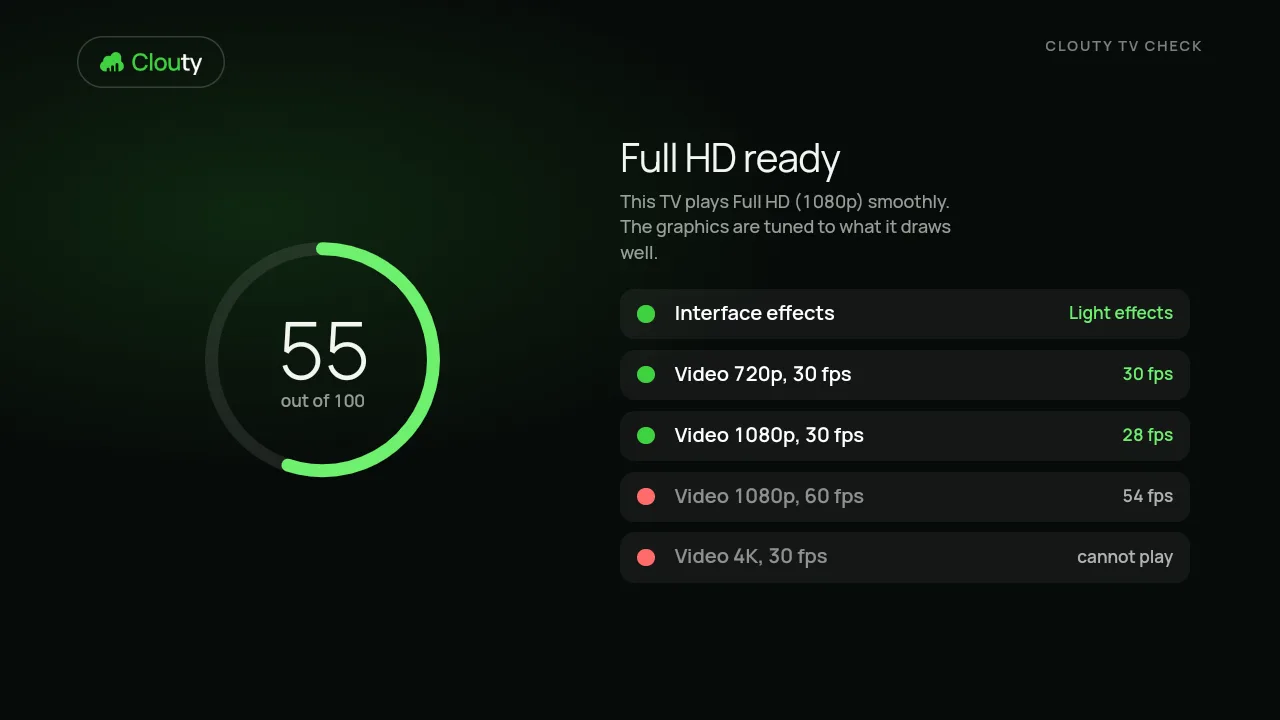
What the check does
It plays short test clips at 720p, 1080p at 30 and 60 frames and 4K, counts how many frames really reach the screen, draws a sample of the dashboard at full and at light effects, and gives a score out of 100 with advice.
Run it
A new screen runs the check once when you connect it. To run it again, open the screen's card in Clouty and press Analyse the TV, or press the red button (or 9) on the remote. The TV shows the progress and returns to its playlist.
Read the result
The result lists each size as smooth, stuttering or not playing, with the frames per second it reached. The advice says what to encode your videos as: for a weak box, 720p; for a strong one, Full HD.
Let the screen set itself up
With animation on Auto, a screen that was checked uses the effects it handled well: full on a strong box, light on a weak one. Choose the Full HD encoding for a video only on a screen that played 1080p smoothly.
If 4K does not start
Some boxes report 4K support but cannot start the video. That is why the check plays the clip instead of asking the box. Encode for the largest size that played smoothly.